Create a room: details, photos and amenities
2:01 video · For owners
Why it matters
A good listing answers clients' questions before they ask: what the space looks like, how big it is and what's included.
Step by step
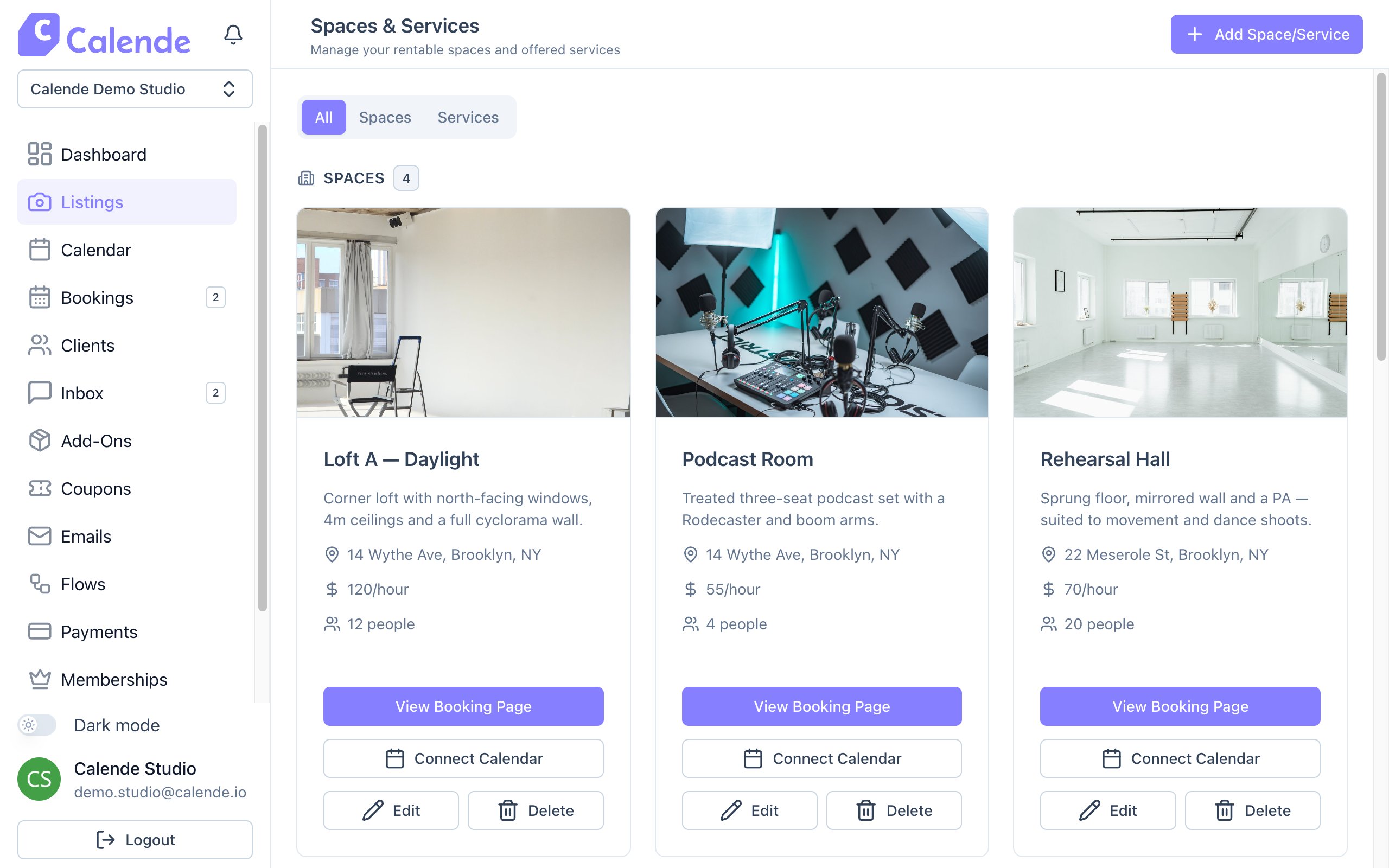
- Click Listings, then Add Space/Service, then Space.
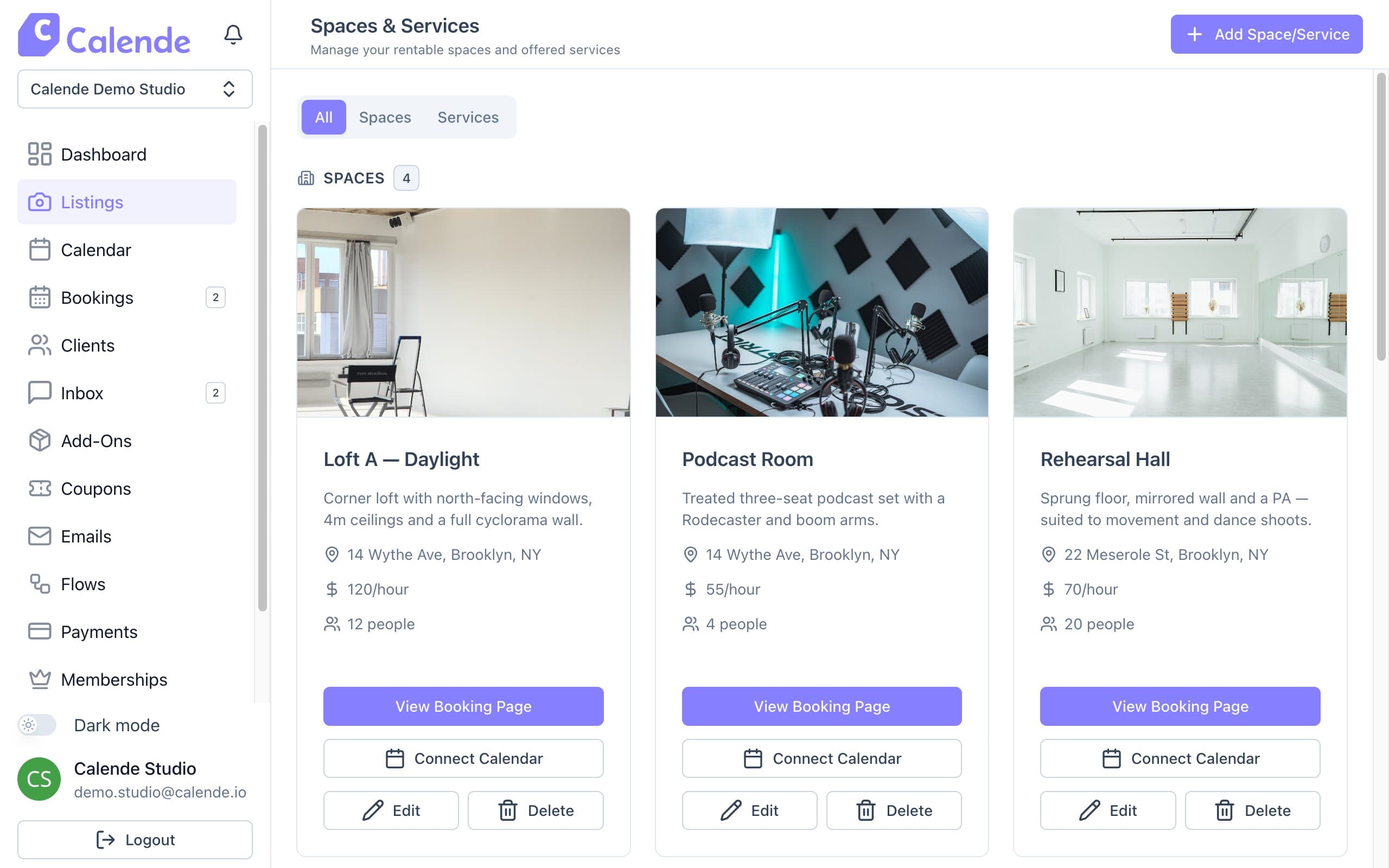
Listings shows every room and service. Add Space/Service is at the top right. 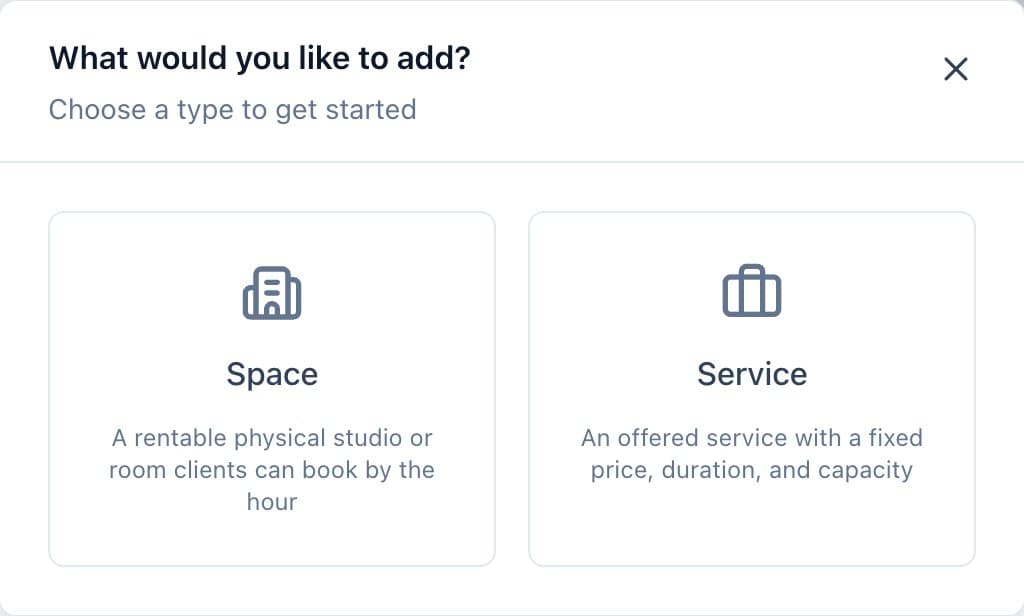
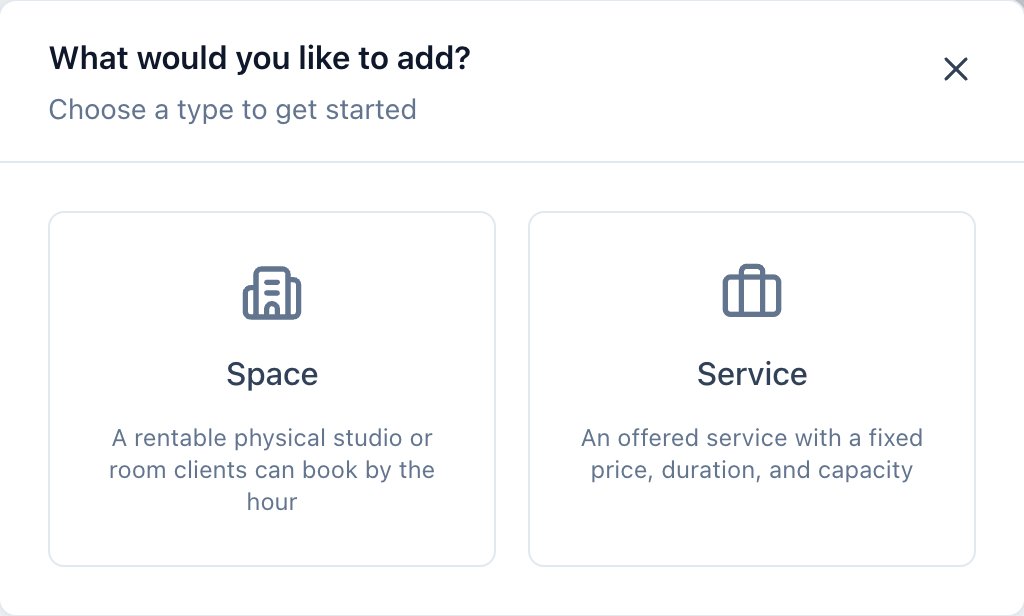
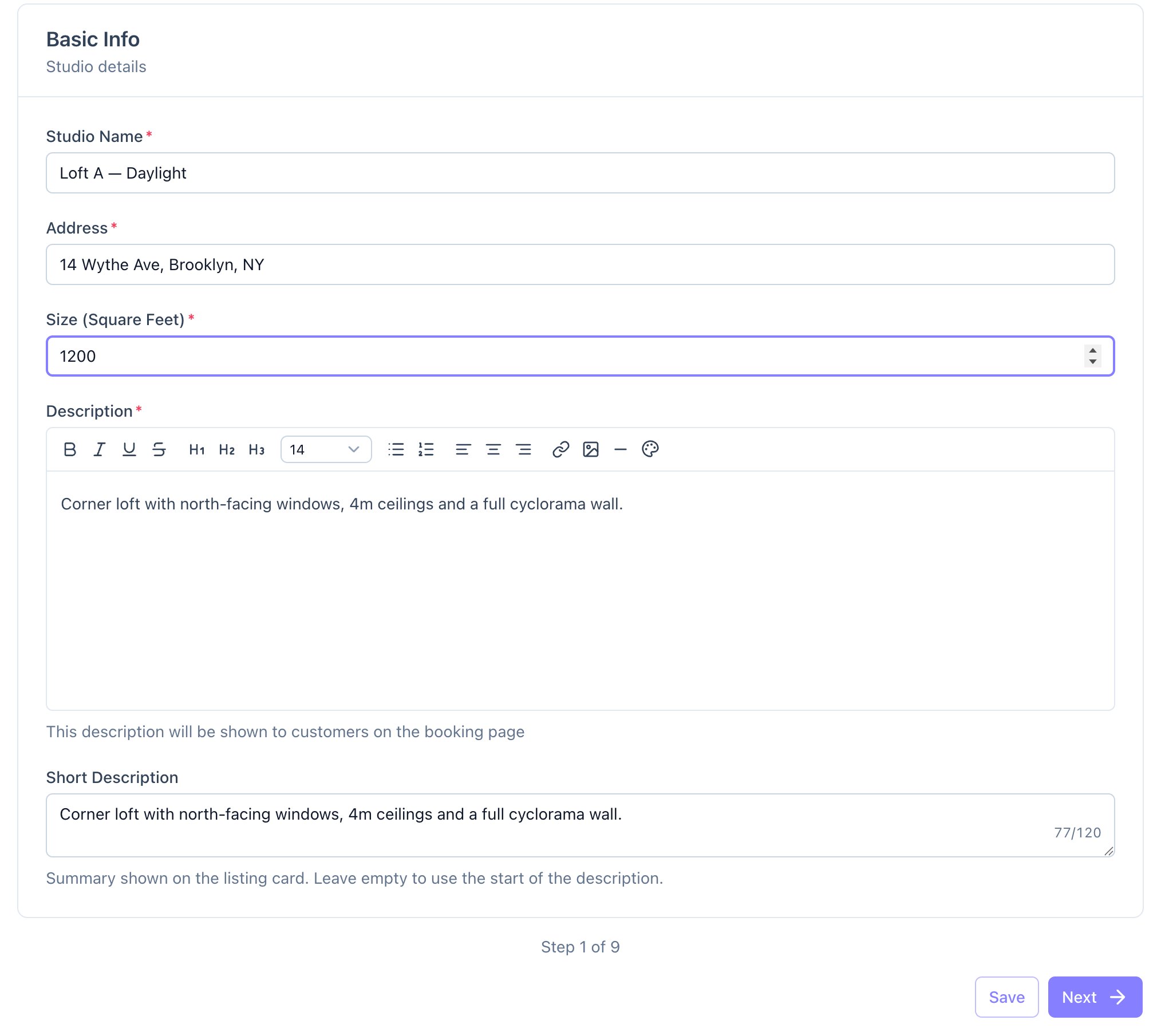
Choose Space for a room clients book by the hour. - On Basic Info, enter the Studio Name, Address, Size (Square Feet) and a Description. Add a Short Description for the listing card.
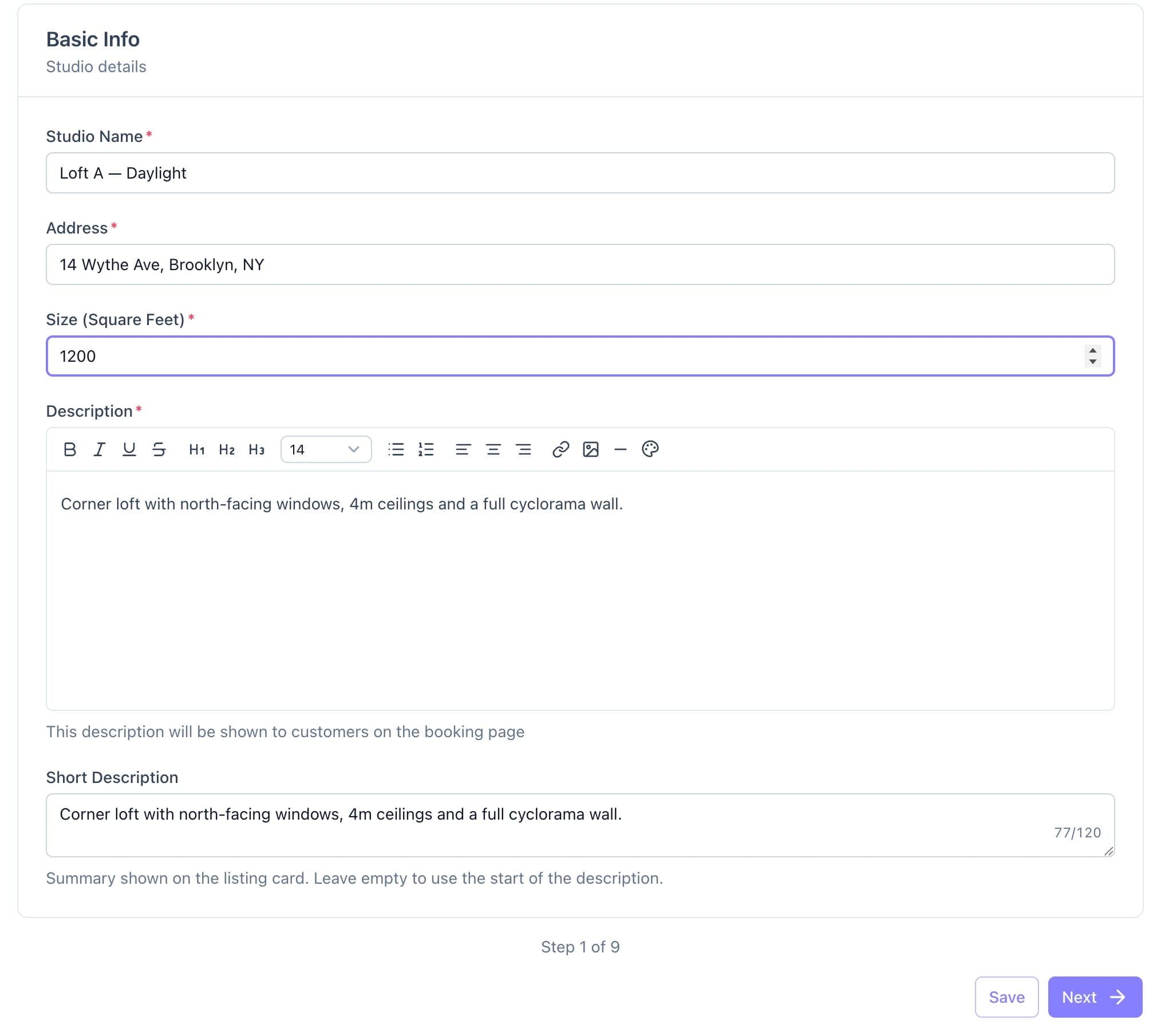
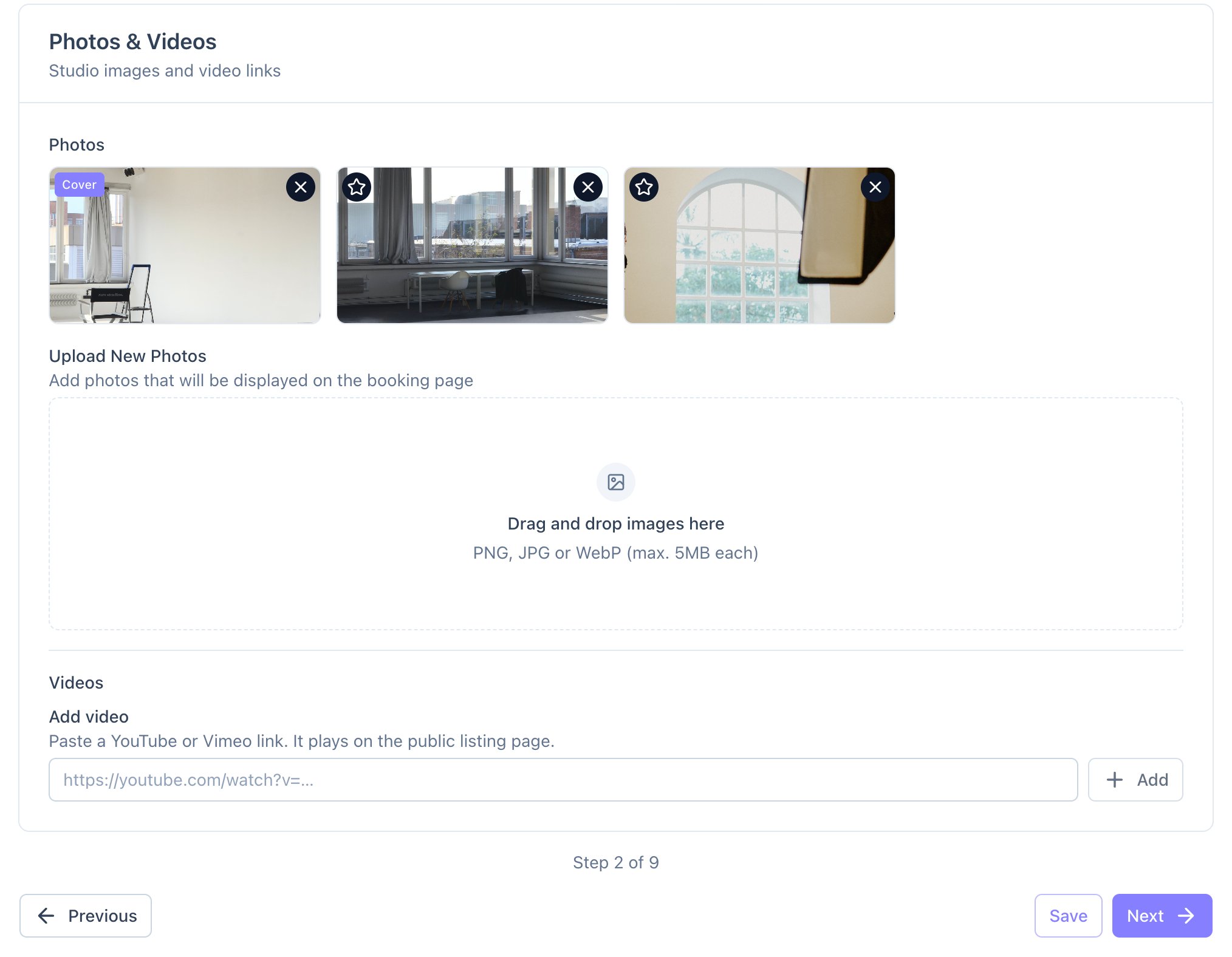
The Basic Info step. - On Photos, drag in your photos and click the star on your best one to make it the cover. Paste YouTube or Vimeo links under Videos.
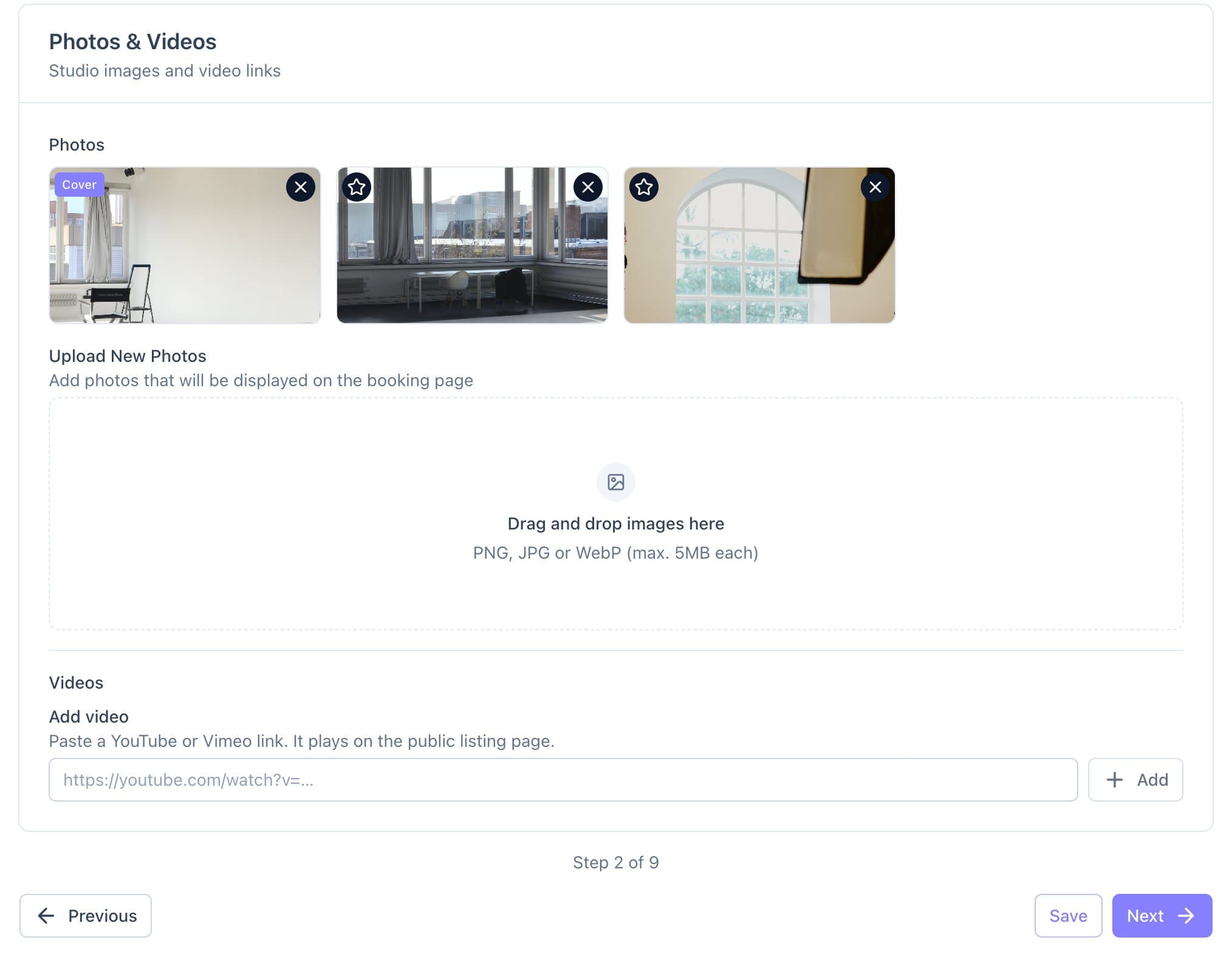
The Photos step. The star sets the cover photo. - Keep the default hours for now. On Pricing, enter a Base Hourly Rate ($), Minimum Booking Hours and Maximum Number of Guests.
- On Amenities, type each amenity and press Enter.
- Click through the remaining steps, then click Save Studio.
- Click View Booking Page on the new card to see it as clients will.
Good to know
- Create rooms from a computer set to your studio's time zone. Calende uses it for every booking time, and it can't be changed later.
- The short description is limited to 120 characters. Leave it blank to use the start of your description.