Sync with Google Calendar
1:15 video · For owners
Why it matters
For rooms, sync works both ways: Calende bookings appear in Google, and busy time in Google blocks those hours in Calende.
Step by step
- On the room's card in Listings, click Connect Calendar.
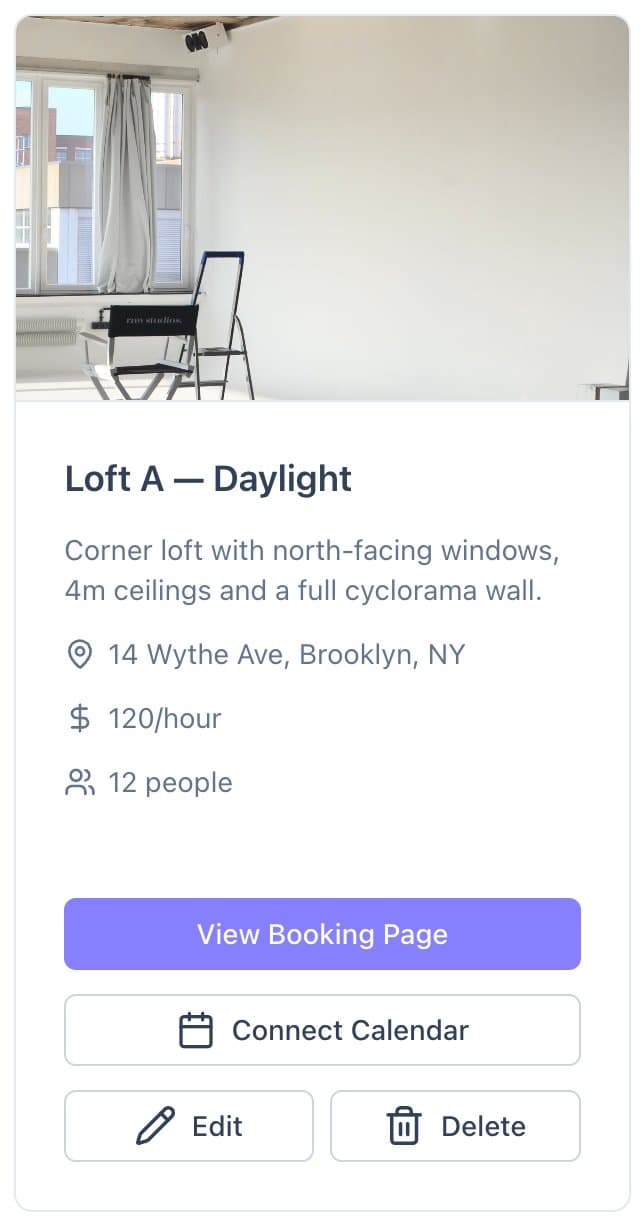
Connect Calendar on a room's card in Listings. - Sign in with Google and allow access. (Right after you create a room, Calende also offers this in a Connect Google Calendar pop-up.)
- Choose Create a new calendar or pick one you already use, then click Confirm.
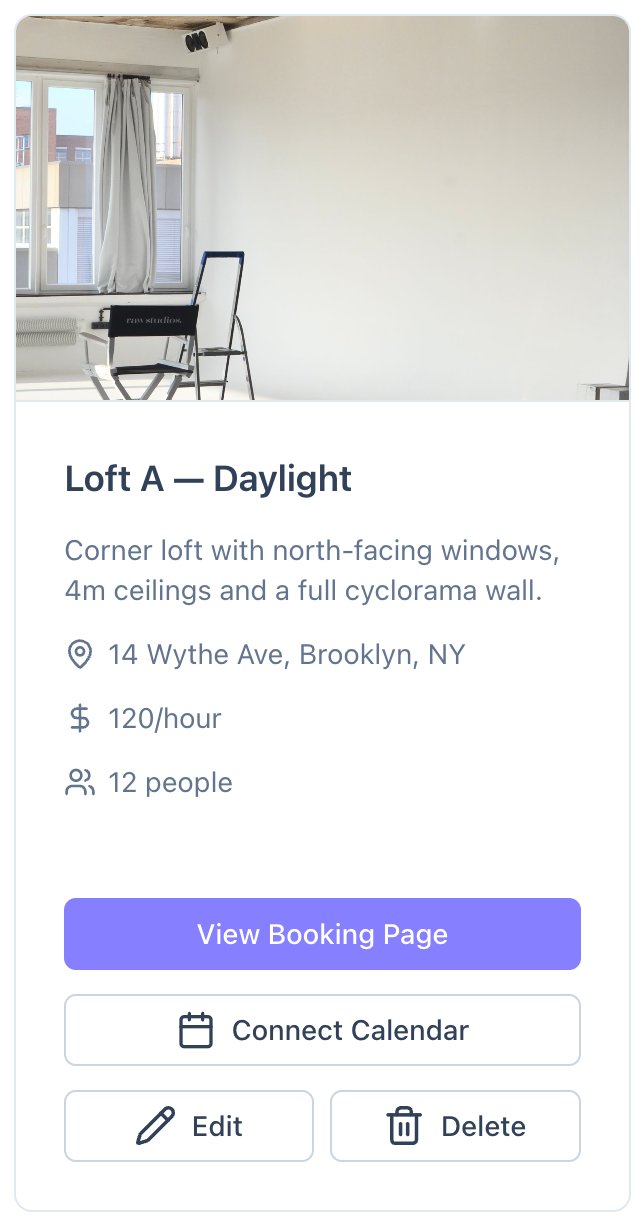
- The card now shows Calendar Connected.
Good to know
- All-day events block the whole day. Events marked Free in Google don't block anything.
- If the card turns red, click Reconnect. Until you do, Google events stop blocking.
- For services, sync goes one way: bookings appear in Google.